
How to Create a Parallax Hover Effect with Webflow


I'm going to show you how to easily add a parallax effect that reacts based on where your mouse is on the screen.
This, as the title suggests, will be done in Webflow since the platform already has the tools we need built-in, which will help us achieve the effect.

There are three steps involved:
Step 1: Create the Assets
Since the assets you are using might be quite different than the ones I used in my project, I am just going to give a brief overview of what is needed.
The assets need to be PNG's with an alpha channel.
This means that you will have an object with transparent space behind it. Here is what my mountain assets look like with the background removed:
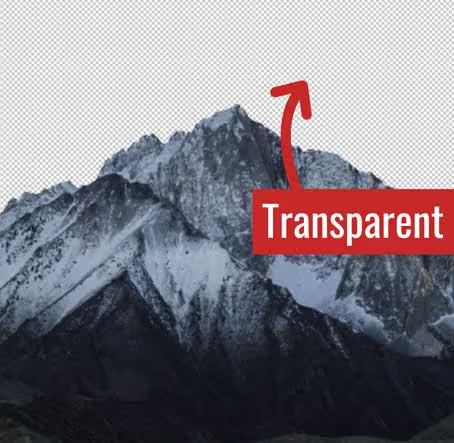
I used Adobe Photoshop to create the alpha channel. Here's the basic idea.
You can also use a free software called GIMP to remove the background.
I used three assets in this example:
- Sky background (no transparency needed)
- Back mountain (with transparent background)
- Front mountain (semi-blurred out, with transparent background)
Step 2: Add the Assets to Webflow
Now that we've created our assets, we need to add them to Webflow along with a bit of styling.
The basic idea is to create a full-width section with a background image set to cover, and then all the rest of our images rest on top of the background image (in other words, they are set to an 'Absolute' position).
Here are the steps used in my example:
- Add a 'Div Block' with some styling (your numbers may be different since we are using different assets).
Width: 120 VW, Height: 110 VH, Display: Flex, Direction: Vertical, Align: center, Justify: center, Background image: cover (this is my sky background).
- Add your other images.
First image (back mountain):
Width: 120 VW, Position: Absolute (Full), Z-Index: 4
Second image (front mountain):
Width: 120 VW, Position: Absolute (Full), Z-Index: 6
- Add a header, text, and button.
This is pretty self-explanatory. Just make the header and text are set to Z-index of 5. The button should be set to Z-index of 7 or higher.
Step 3: Add Hover Interactions
- Add an element trigger to your main section (mouse move over element).
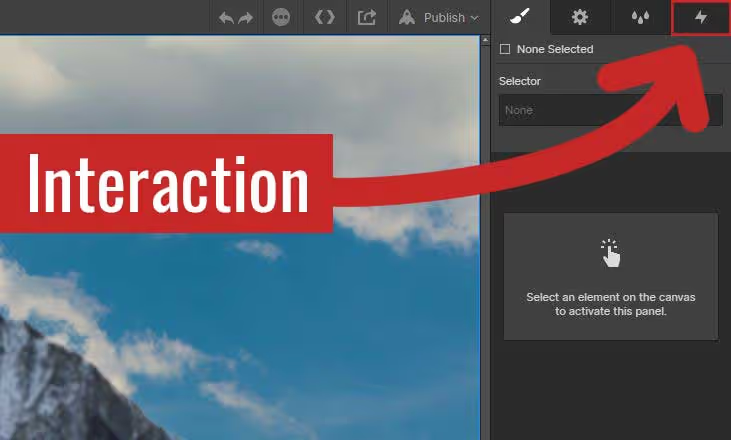
- Click 'Play Mouse Animation', and then the '+' button.
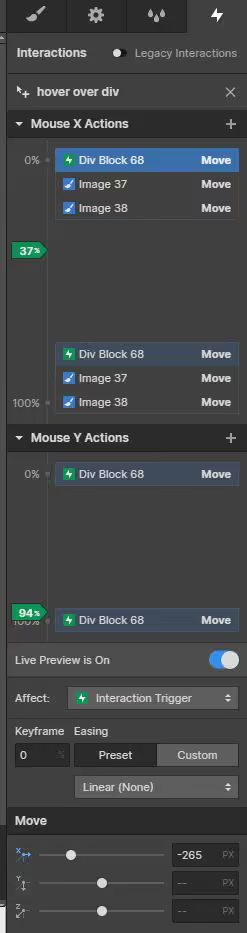
- Add 'Mouse X Actions' and 'Mouse Y Actions' for your background image.
- Add 'Mouse X Actions' for your other images.
Here is what my finished interaction settings look like:
Finished product: