Free Web Design Shape Dividers Pack [50+ Dividers]


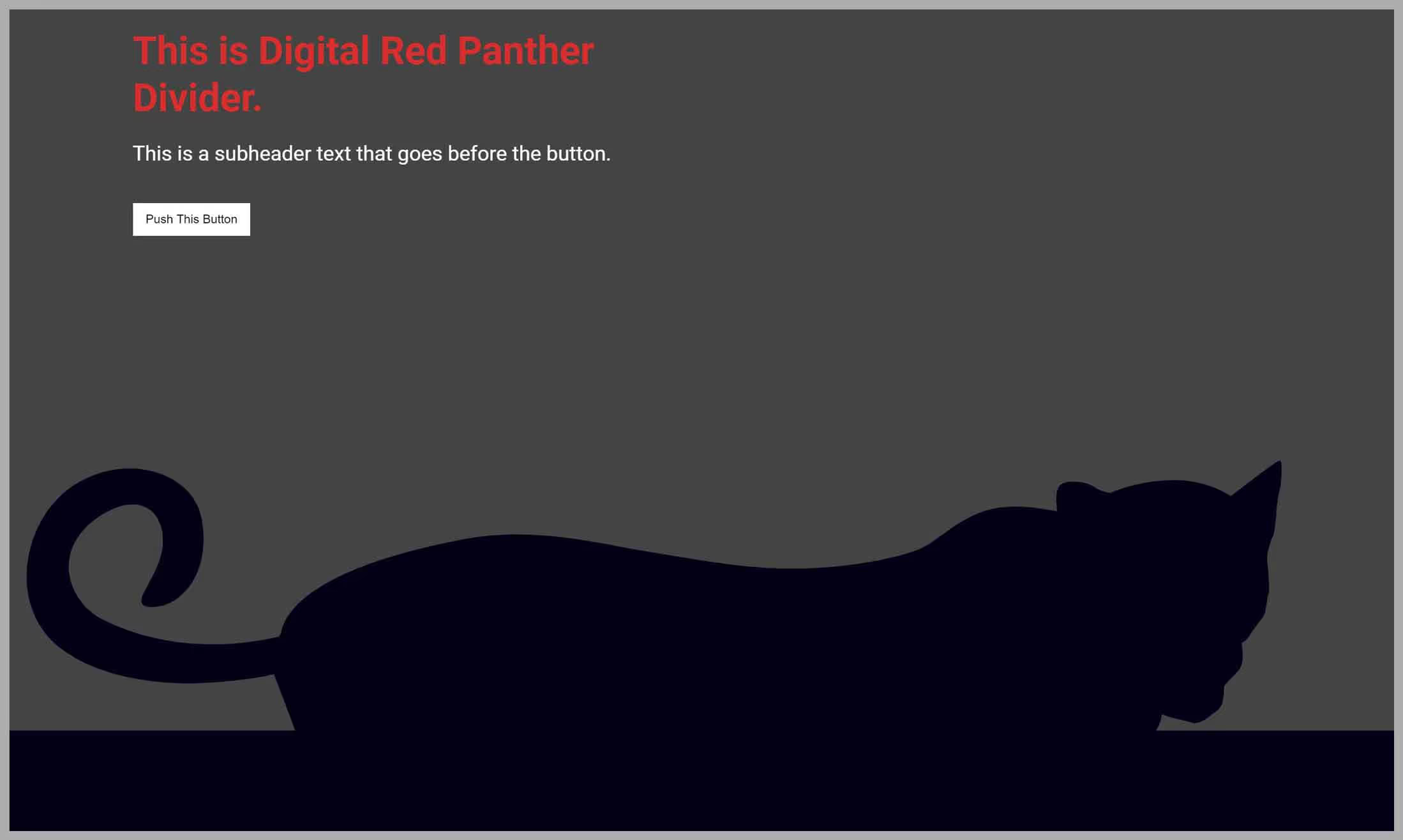
Shape dividers are stylized elements used to separate sections of a webpage. They are generally shaped in a manner that represents your brand or the message you are trying to send to the user.
There weren't many page shape divider resources for web designers out there. So I decided to create a pack for you to use.
You can download the whole pack of SVG's completely free:
Or if you want, you can first browse through all of the section dividers you're getting with the pack, and even learn how to make your own shape dividers.
1. Dividers Included in the Pack
2. How to Add the Dividers to Your Website
4. How to Make Custom Page Dividers Yourself
Watch Video Instead:
1. Dividers Included in the Pack
Slant

Wavy Loops

Half Sphere

Triangle Dent

Basic Triangle

Triangle Uneven

Side Triangle

Small Triangles

Slant Down

Slant Up

Big Round

Wavy Motion

Sharp Slants

Faded Slant
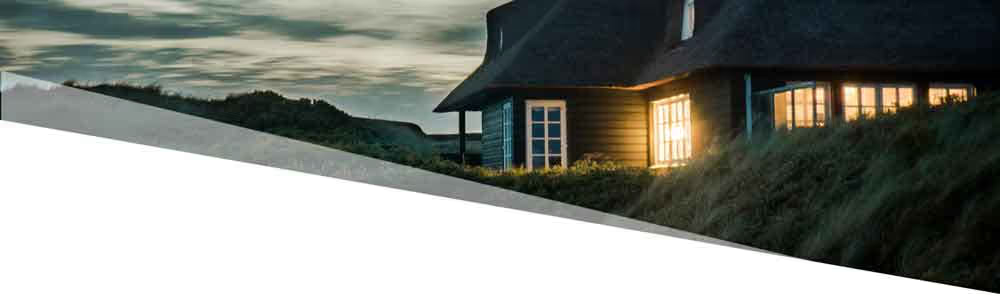
Faded Triangle

Tri Triangle

Clouds

Faded Clouds

Bubbles

Rough Edges

Wavy Dashed

Iceberg

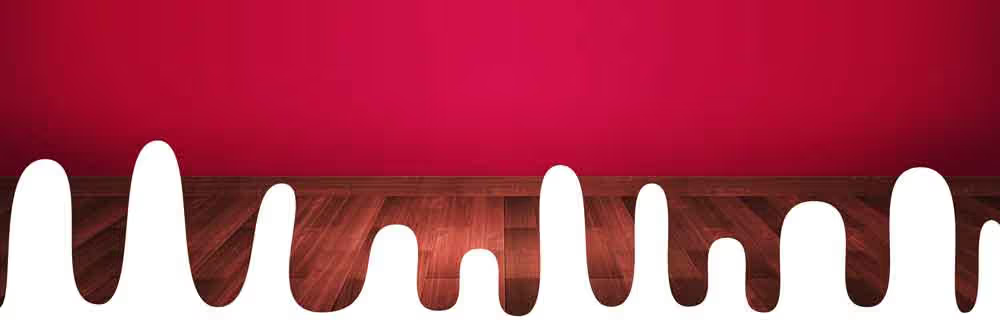
Paint Drip
Three Triangles

Pyramid

Christmas Trees

Book

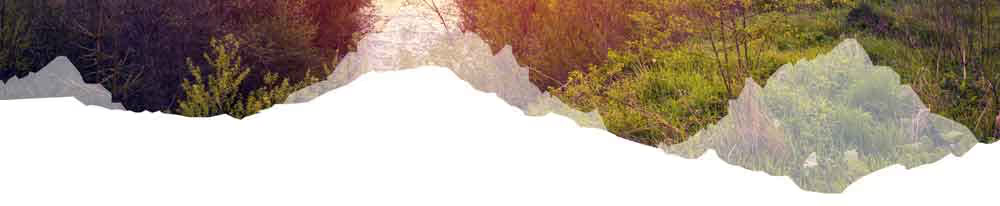
Mountain
Fire

Snowflakes

Fall Leaves

Music Notes
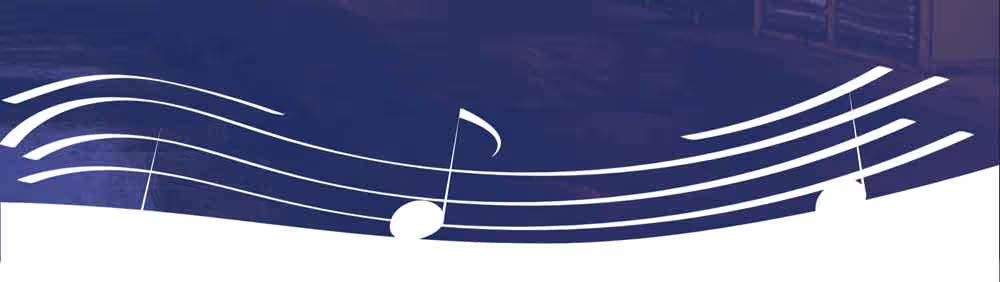
Sharp Paper

Shredded Paper

Paint Brush

City Skyline

2. How to Add the Dividers to Your Website
Adding shape dividers to your website can be quite simple, depending on the platform you use.
Using WordPress
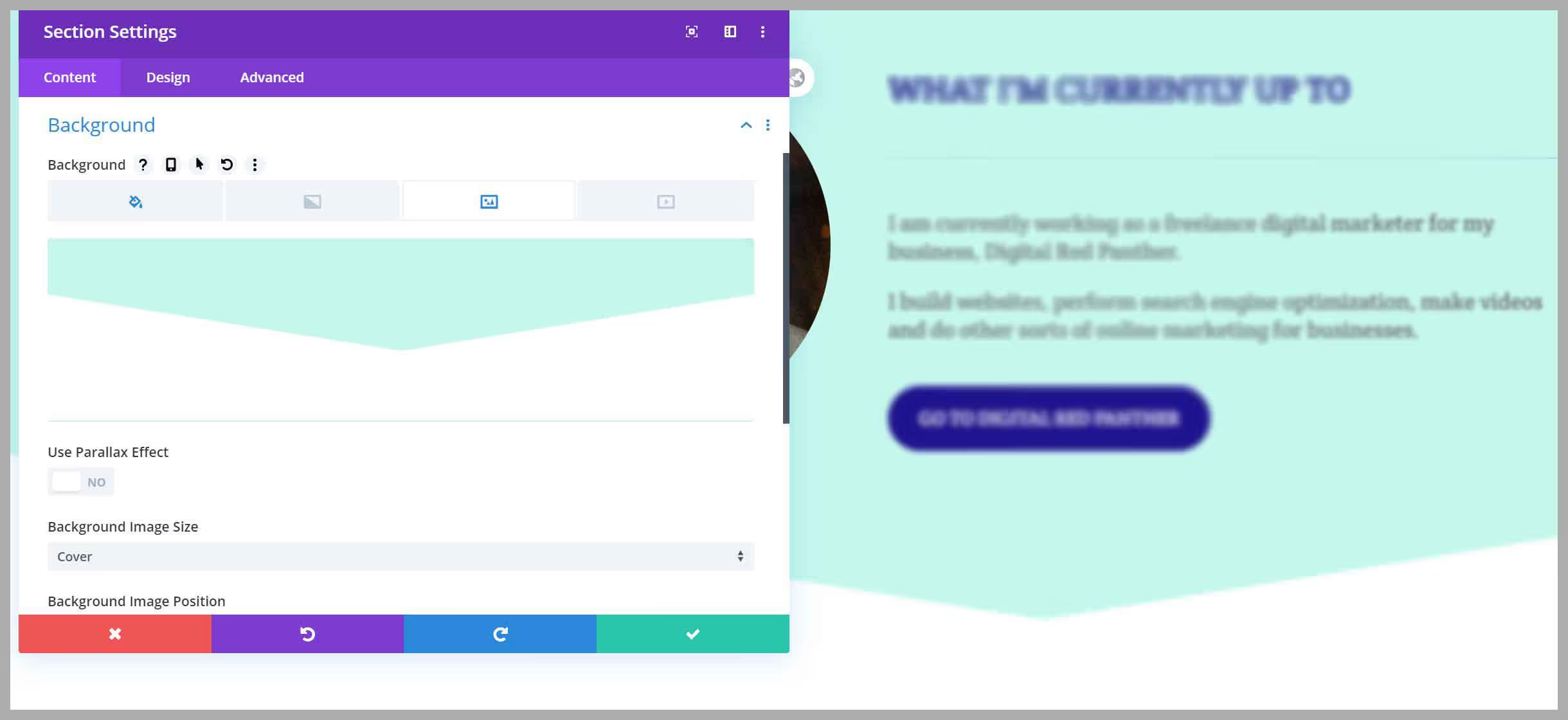
WordPress page builders such as Divi and Elementor give you options to add the dividers as section background images.
However, for some of these page builders, you may need to convert the SVG to PNG's before uploading.
- Open the section background settings
- Add your PNG or SVG file as a background image
- Make it 'Cover' or 'Fit'
- Position it to the bottom and turn off repeat
Using Webflow
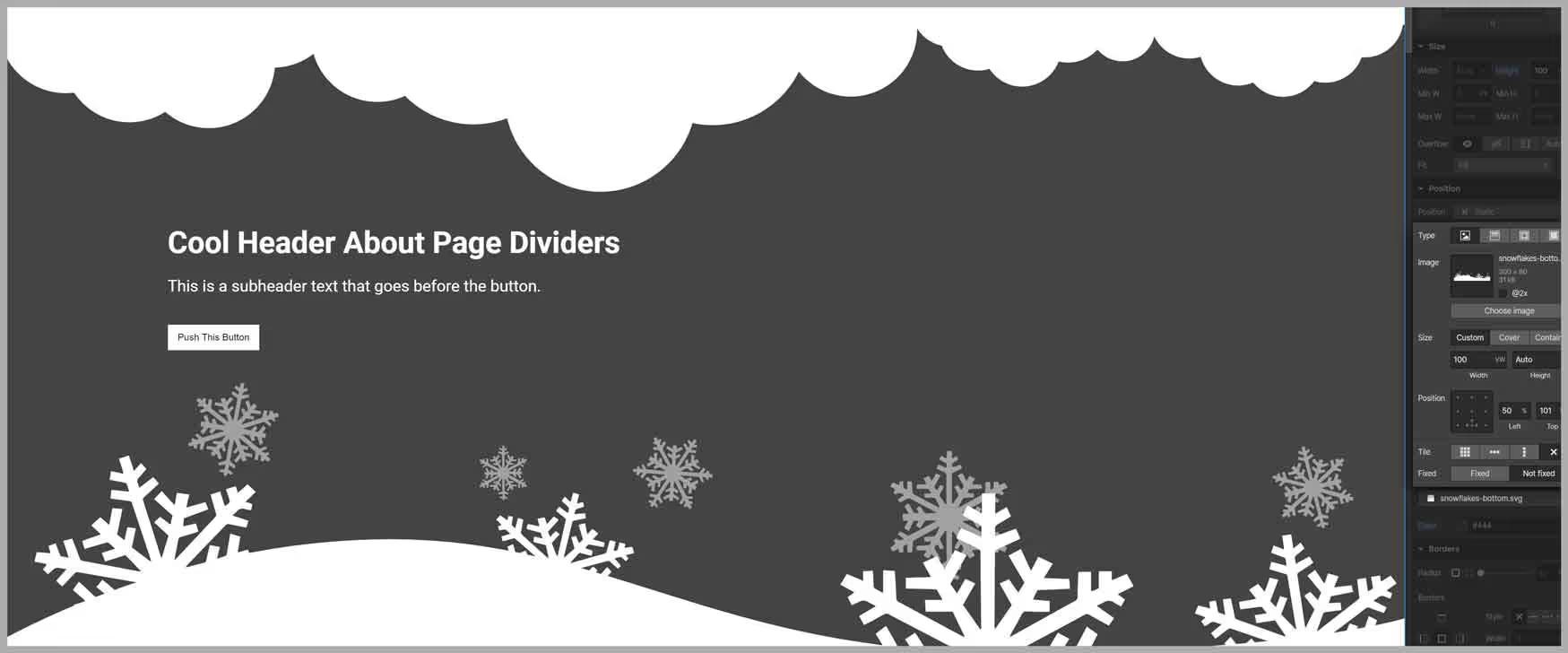
Personally, I use Webflow, which makes the process incredibly simple.
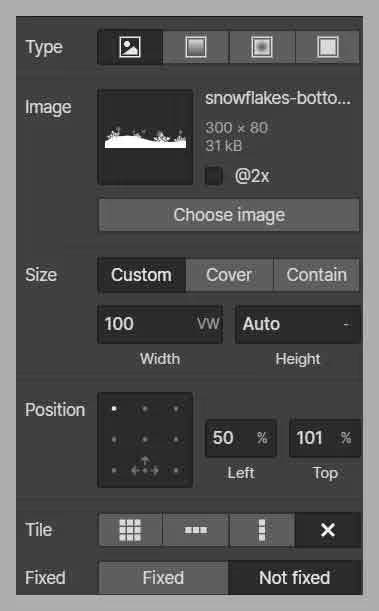
- Add a Div Block
- Make it 100 VW
- Add a background image to the Div Block
- Position it to the bottom
Using Photoshop
If your platform does not allow you do add them as section background images, you can also paste them straight on top of your image in a photo editor such as Photoshop or Gimp.
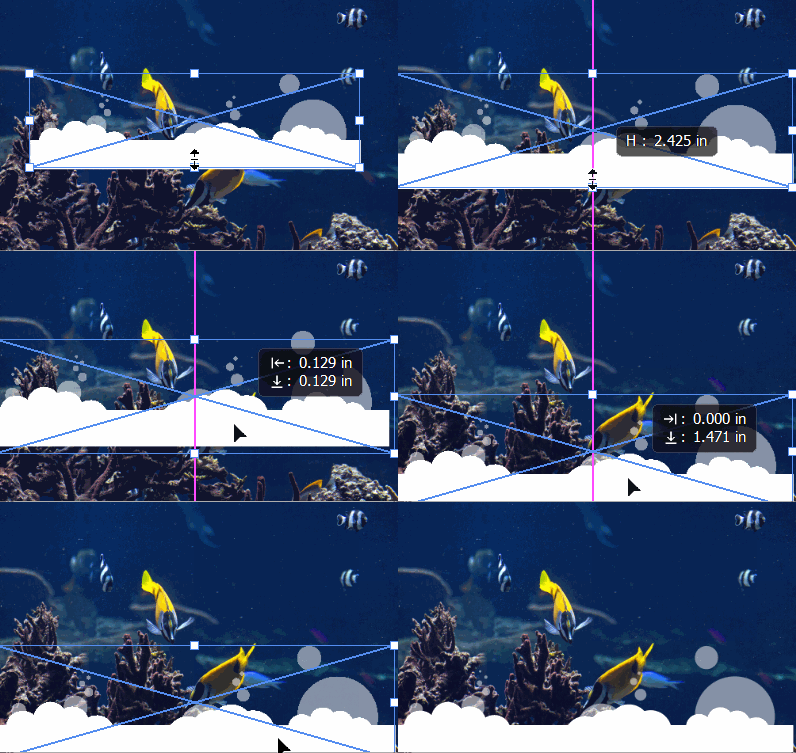
3. How to Edit the Dividers
To edit the shape dividers, you will need a program that can read SVG files.
Adobe Illustrator is probably the most popular SVG editor, but you can find some free ones as well.
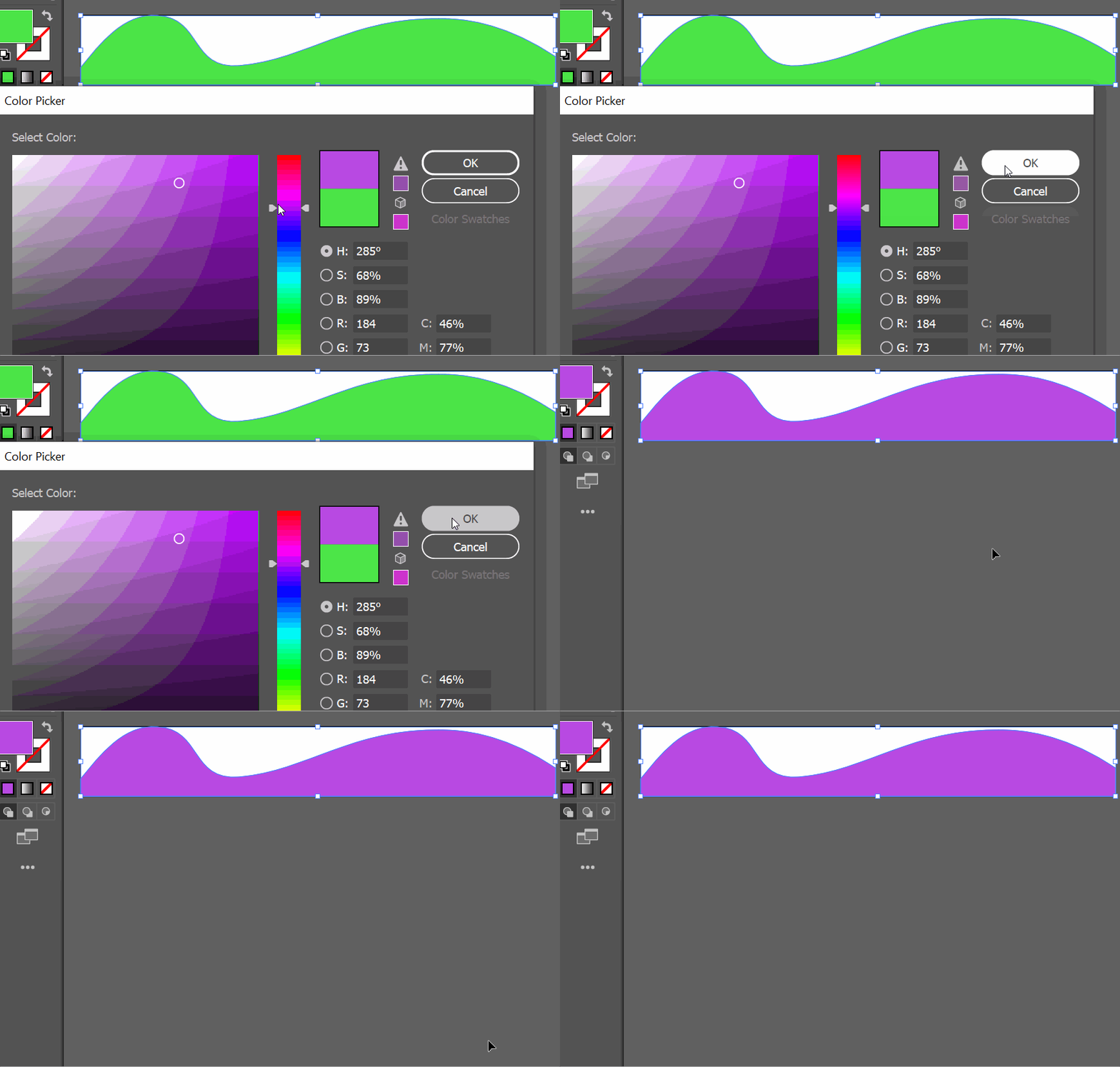
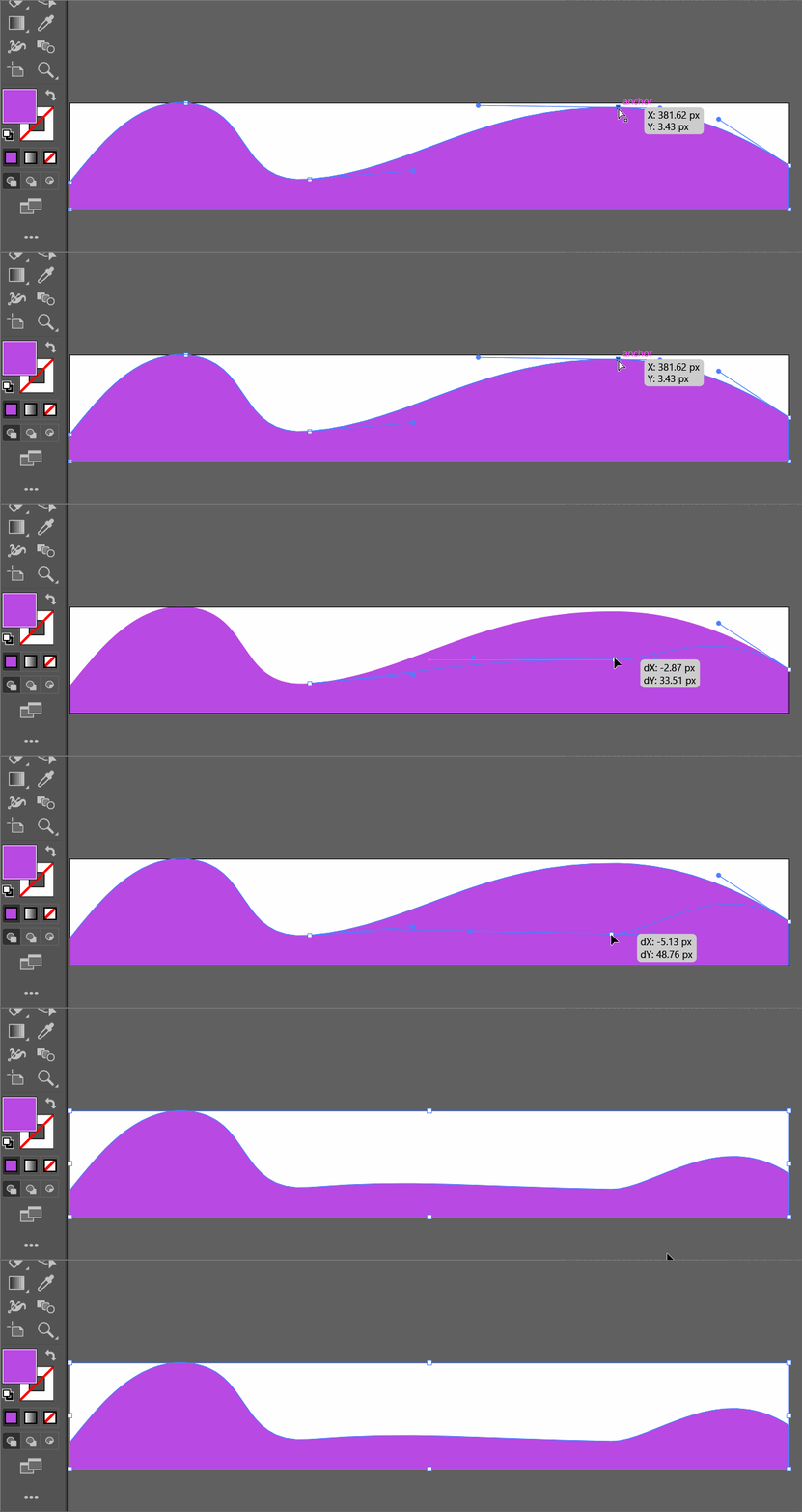
To edit the files, simply open the SVG file in your program of choice and have at it.
You can change the color.
You can change the position of the points.
Or you can duplicate and add or lower opacity.

4. How to Make Custom Page Dividers Yourself
Creating SVG shape dividers for web design is actually quite easy.
If you want to create complex shapes, then it can take some time to make sure the detail is right, but it's worth it :)
You can use a PNG or SVG editor, but I recommend SVG unless what you need is only possible with PNG.
Simply open up your program of choice, take out the pen tool, and start placing points.
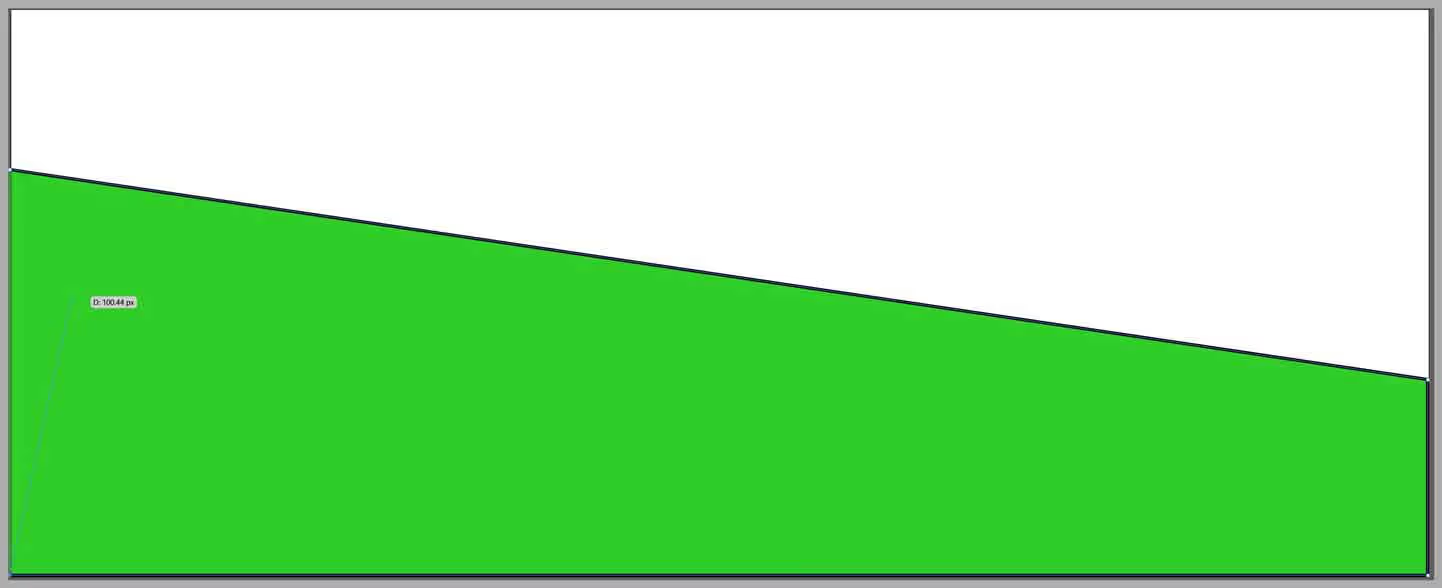
It's important that your points are lined up perfectly, because if they're not, it will show up funny on your website.
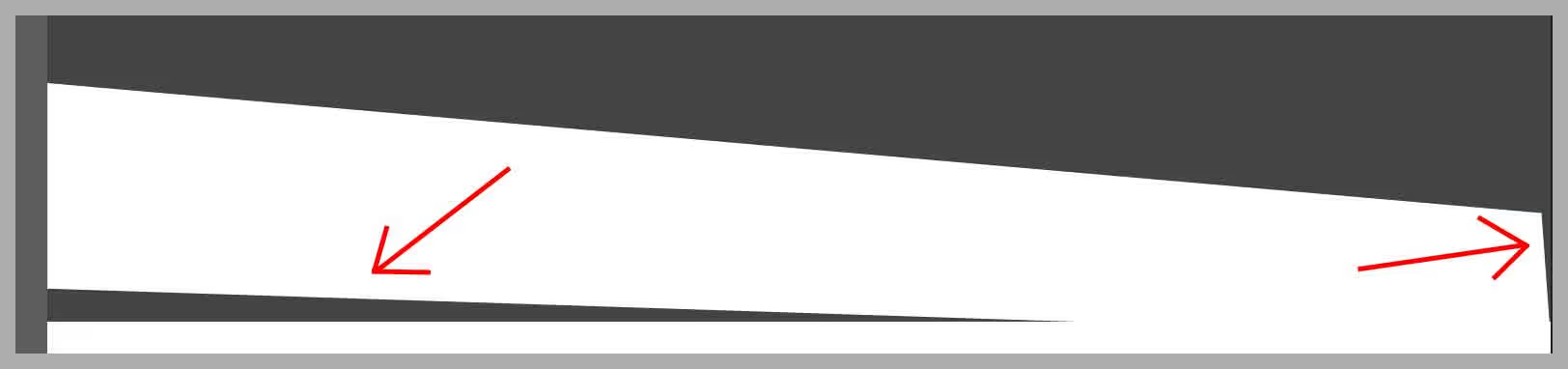
Use the curvature tool to make perfectly smooth rounded edges.

To make complex shapes, add an image of the shape that you're trying to imitate.
Add a new layer on top of the image, and place points outlining the image.
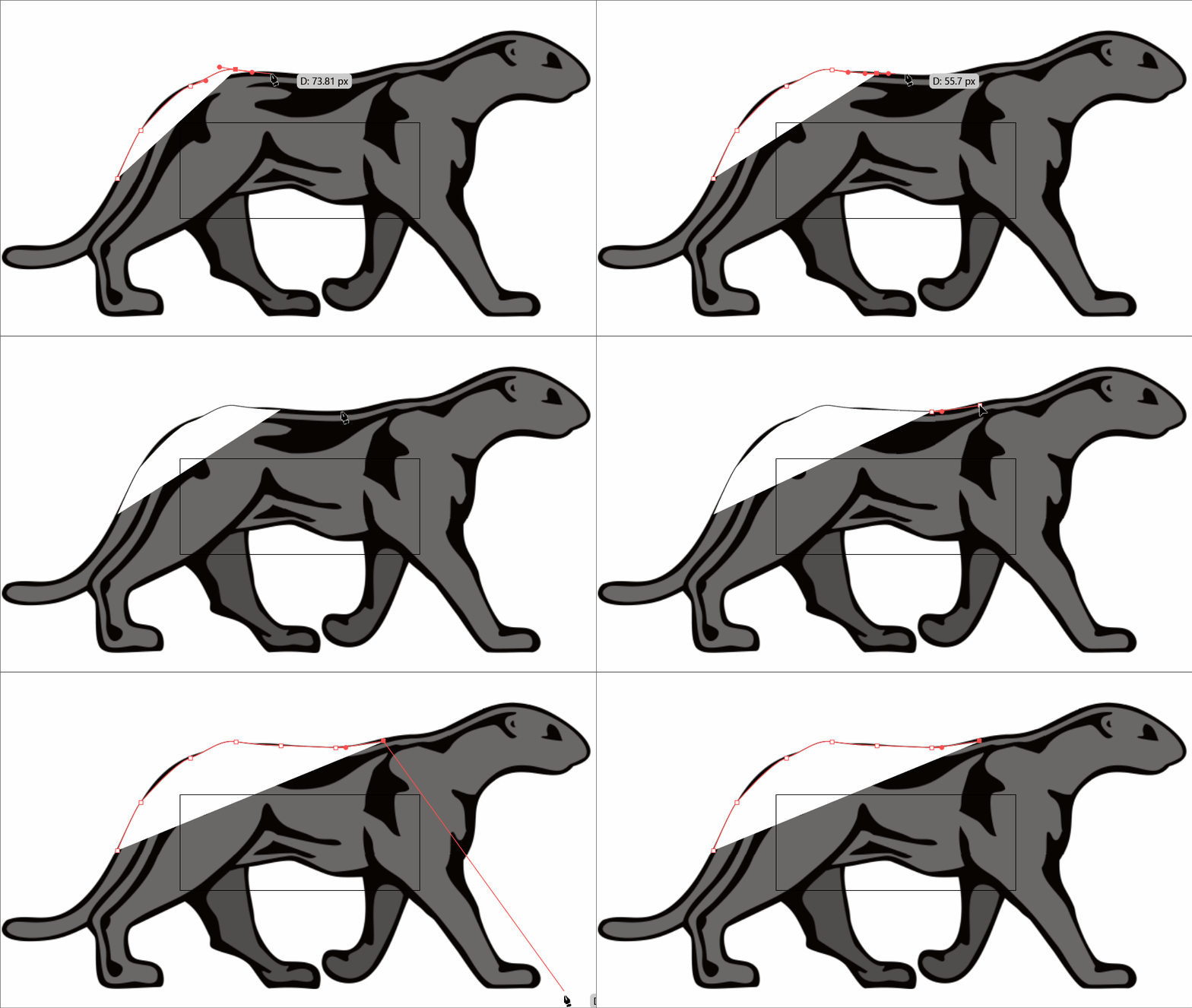
Boom! You now have a Digital Red Panther shape divider. (I made some adjustments from the image above.)